










THE PROFESSIONAL DMX SERIES
-
Simple installation
via the integrated web interface -
WiFi ArtNet Node
2,4GHZ wireless network -
512 DMX channels
Without limitation -
3 years warranty
Premium Support -
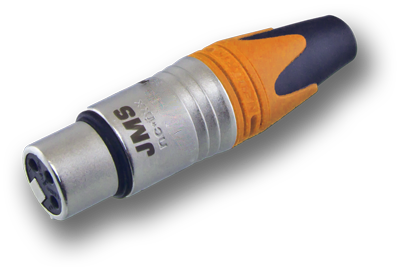
3 pin Neutrik XLR socket
No adapter needed
-
Operating system independent
no driver installation -
Signal LEDs
WLAN mode / data reception -
Internal scene memory
for over 500 scenes
- Ultra compact
- IEEE 802.11 b / g / n
- Made in Germany
- Developed in Germany
- ArtNet protocol
QUICK LINKS
RECOMMENDED SOFTWARE
FreeStyler (Windows)
DMX Control 2 (Windows)
QLC + (Windows)
QLC + (macOS)
StageLight (iPad)
INSTRUCTIONS / VIDEOS
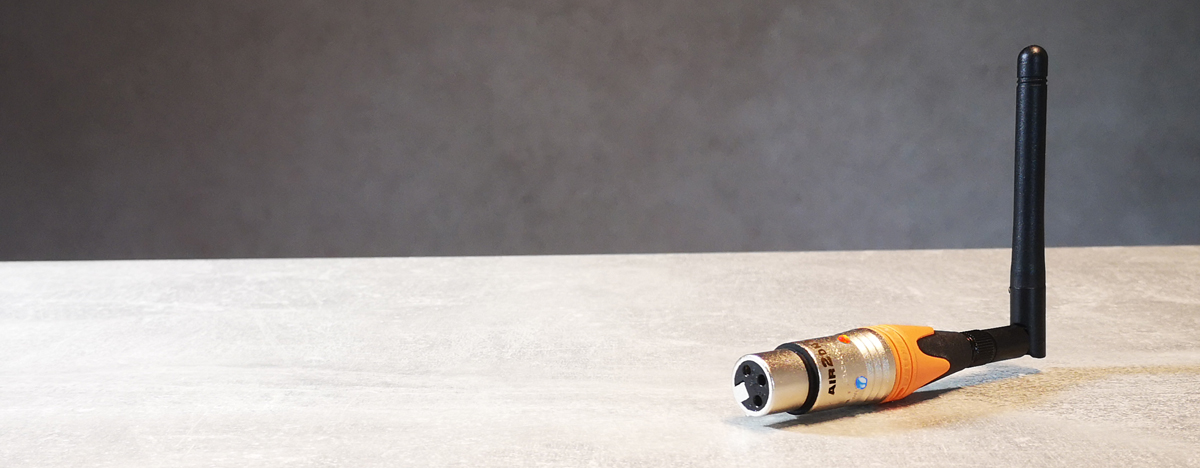
Wireless
Real WLAN ArtNet Node.
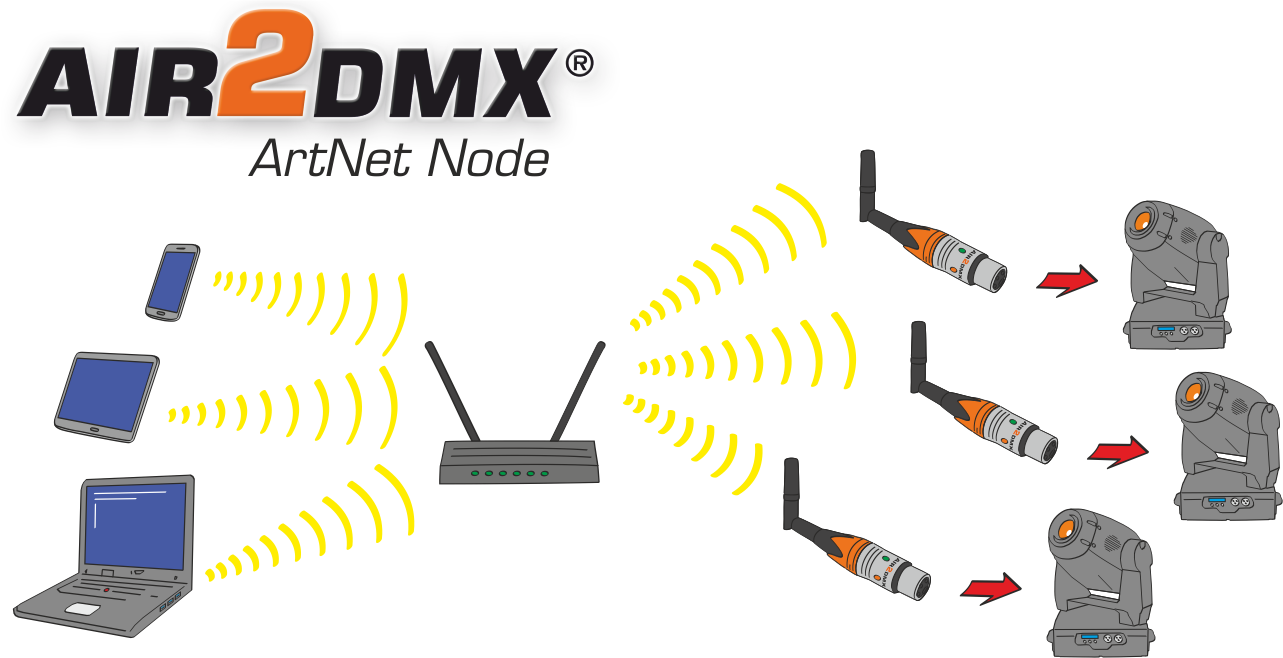
To send DMX over an IP network, an individual IP-based protocol (Artnet) is used. The AIR2DMX DMX interface has a full WiFi function and can be operated without an extra access point. Nevertheless, it is possible to connect the AIR2DMX DMX interface to a local network in order to integrate it into your own network environment. So you can operate your devices completely wirelessly.
Full-fledged DMX lighting control
The AIR2DMX is a full-fledged WLAN DMX interface with which you can control intelligent lighting effects such as moving heads, but also conventional light and special effects such as hazer, pyrotechnics or laser gauze screens.
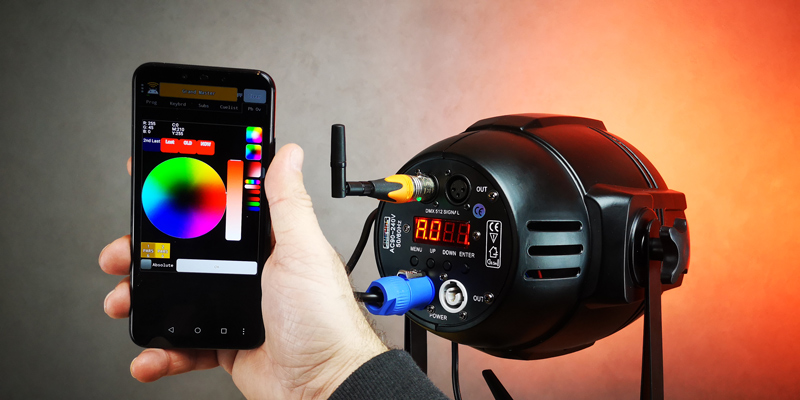
PC / mobile phone / tablet
WiFi DMX ArtNet interface
Allows one very simple controls from DMX-capable devices via the PC / mobile phone / tablet directly or within a WLAN or a local network.
Compact Wireless DMX interface for controlling DMX-capable stage lights and effects.
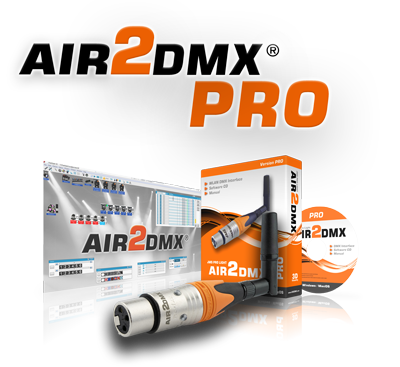
The AIR2DMX PRO interface is a WiFi ArtNet Node, which converts WLAN ArtNet signals into DMX signals.
UNIVERSAL
Quick and flexible assembly
The wireless DMX and ArtNet interface is suitable for mobile devices and stationary Installations on show stages, in Theater, in the field of Interior, Exhibitions and Trade fair construction, Event lighting, architecture and Discos.
Wireless DMX control solution - real WLAN ArtNet DMX interface with an independent generation of a DMX data stream for controlling 512 DMX channels (1 universe).
Rapid construction - The AIR2DMX was designed for every user who needs a DMX console. The user interface is for Beginner as well as for Experts designed in such a way that commissioning is simple and straightforward. In just a few minutes you can even set up complex lighting systems control wirelessly.
ArtNet SOFTWARE
-
Professional DMX software
Many users worldwide
Extensive possibilities -
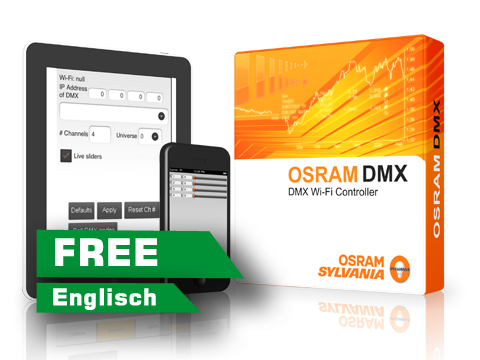
Android DMX controller app
The OSRAM DMX WLAN controller application is an implementation of the DMX protocol with ArtNet II UDP unicast mode. Up to 512 participants and 16 universes can be controlled with this application.
-
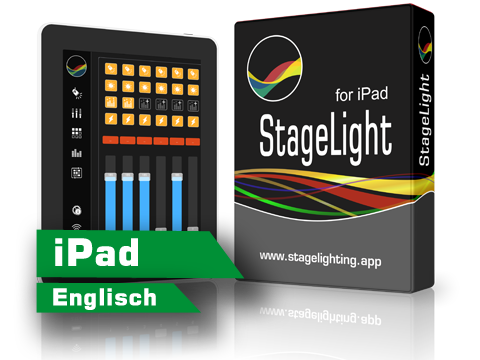
The Smart Lighting Control App
StageLight is a professional iPad app for controlling stage lights.
-
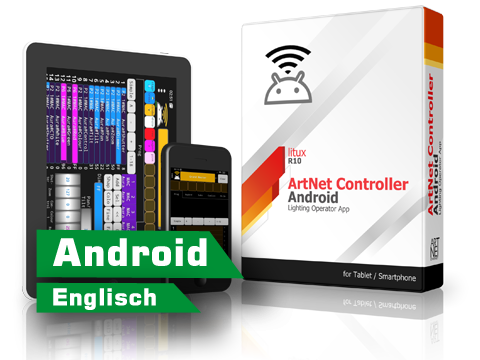
Android DMX controller app
This is an app for testing and trying out the ArtNet protocol. But can also be used to play a simple show if your main controller is broken or you've forgotten it ;-)
-
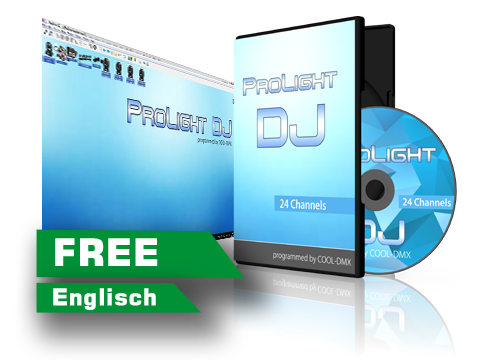
DJ light control software
with 24 faders and BPM counter
-

Software for theater and live music
Lighting automation in real time
-
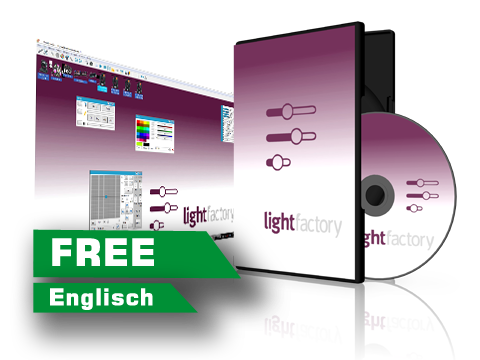
Lighting Without Limits
Eone of the leading software-based lighting control systems.
-
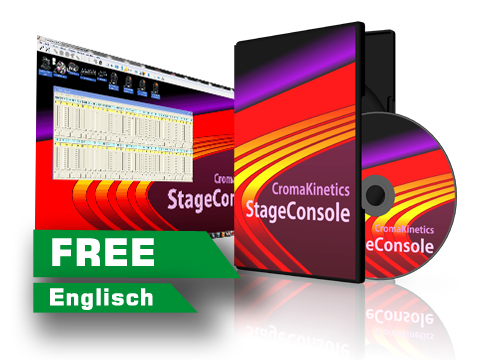
Simple DMX fader console
designed for conventional theater lighting.
-
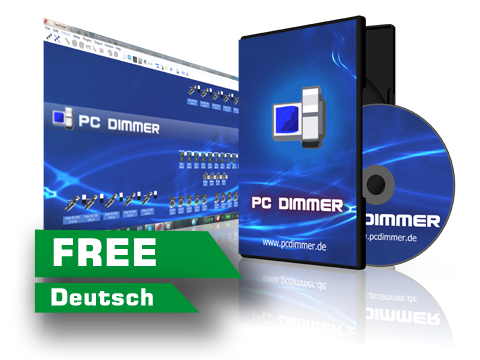
Simple DMX fader console
This software is designed for conventional theater lighting.


iPad APPs
Android APPs
- DMX interface connection
- Connection protocol
- DMX channels
- Scene memory
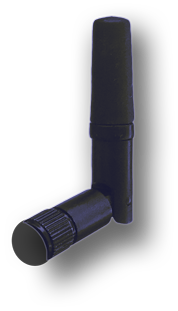
- Antenna
- Range Indoor / Outdoor
- Router Mode
- Hotspot fashion
- AdHoc fashion
- Configuration via browser
- Software Pack
- DMX / ArtNet signal LED
- Power LED
- DMX devices
- MAC OSX
- Windows
- Linux
- Android
- iPhone
- HELLO
- Premium Support
- Galvanic separation
- Galvanic Power LED
- DMX IN
- Premium Support
- Fixture library
- Product warranty
QUESTIONS AND ANSWERS
AIR2DMX WLAN interface
AIR2DMX does not connect to the router
Note! Should the WIFI LED after 30 seconds flashing red quickly the WLAN password or SSID was entered incorrectly.
- In this case, check the entry
- Watch out for Large and lower case
- Check it out Underscores / Dashes and spaces.
- avoid special character.
Don't use that Password manager - switch AutoFill of the browser for the setup page, these functions can unintentionally set wrong passwords.
- Use someone else Browser.
- Tested browsers: FireFox / Internet Explorer
As long as the WIFI LED flashes red quickly you can reconnect to the AIR2DMX interface via your WLAN end device and make the necessary setup corrections.
Connect AIR2DMX with WLAN router (router mode)
Register AIR2DMX on the WIFI router
Connect the AIR2DMX interface to the power supply.
The power LED lights up Orange / WIFI LED flashes blue.
Connect a WLAN end device (laptop / smartphone / tablet) to the AIR2DMX interface.
Enable you WiFi on your end device
Select the JMS_AIR2DMX_xxxxxx Interface in the WLAN menu and click on Connect.
Enter the AIR2DMX WLAN password of the interface.
The AIR2DMX password can be found on the housing of the AIR2DMX interface.
WIFI LED lights up continuously blue.
Open one Web browser and give the address 2.0.0.1 .
The AIR2DMX setup page opens.
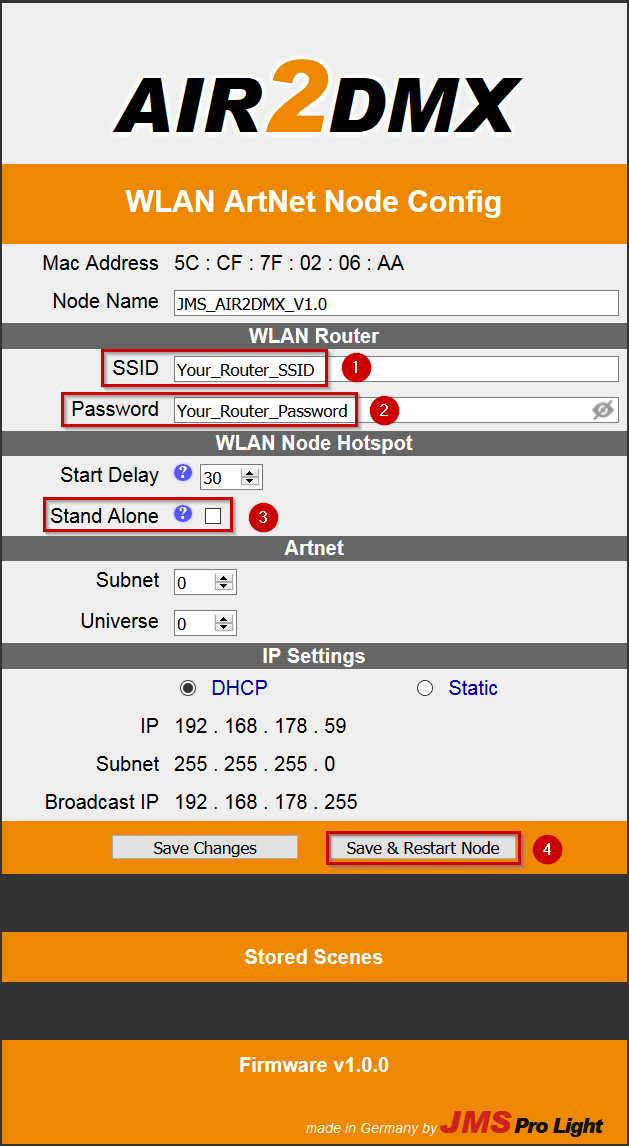
- Enter the SSID (Name of the WLAN) of your WIFI router.
- Give that WLAN password Your WIFI router.
- Deactivate You the Stand alone mode (No tick in the checkbox)
- click Save & Restart Node
The WIFI LED flashes green (The interface tries to log into the router)
After 2-6 seconds the WIFI LED lights up permanently green. (The interface has successfully registered)
The JMS AIR2DMX WLAN interface is now connected to your router.
After switching on the AIR2DMX interface connects it yourself now Automatically with the WLAN router.
Note! Should the WIFI LED after 30 seconds flashing red quickly the WLAN password or SSID was entered incorrectly.
In this case, check the entry and pay attention to Large and lower case as well as underscores / hyphens and spaces.
avoid special character.
Don't use that Password manager or AutoFill, these functions can unintentionally set wrong passwords.
As long as the WIFI LED flashes red quickly you can reconnect to the AIR2DMX interface via your WLAN end device and make the necessary setup corrections.
ArtNet HotSpot Mode
Apparently no reaction in HotSpot mode
Note! Disable mobile data
Im HotSpot Mode have mobile data (WIFI +) on the smart phone / tablet disabled .
The AIR2DMX interface can not Access to the internet provide.
Most mobile devices then try to connect to the Internet via the cellular network or other WiFi routers.
This means that the AIR2DMX WLAN interface is temporarily or permanently unavailable.
USER VIDEOS
-
YouTubeR Error. For more information about errors turn on debug mode in the plugin settings.